
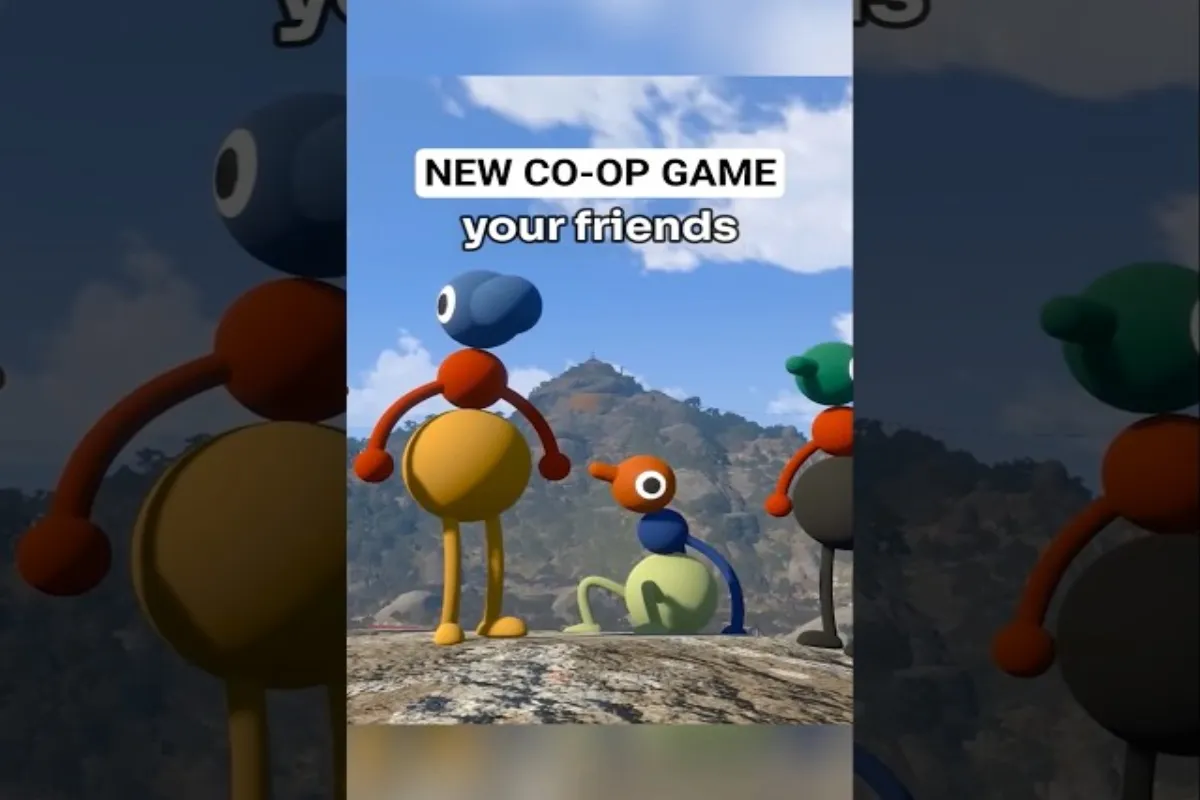
Crackling during a Big Walk walkie-talkie session breaks the immersion faster than almost any other audio glitch, especially because the whole game leans on positional cues to make its world feel alive. If you keep hearing pops, static, or stuttering when other players talk through your radio, the fix usually lives in Big Walk 3D audio settings rather than your headset itself. This guide walks through what causes the artifact, which settings matter most, and the precise tweaks reported by players who finally cleared the noise.
What Causes Big Walk Walkie-Talkie Crackle
Walkie-talkie mode in Big Walk compresses voice input more aggressively than open microphone chat, which means tiny inconsistencies in your input signal get amplified into audible pops. The crackle most players describe is rarely one single bug; it is usually a stack of small issues that surface only when the proximity voice chat system starts routing audio through the 3D engine.
Common Audio Artifacts Explained
Before changing any settings, it helps to identify exactly what you are hearing. The table below maps the four artifacts most often confused with one another to their typical root cause and the first place to look. Reported by players in the Big Walk Discord, these symptoms line up with the most common Big Walk walkie-talkie crackle reports through 2025 and into 2026.
| Artifact | What It Sounds Like | Most Likely Cause | First Place to Check |
|---|---|---|---|
| Constant static hiss | Steady white noise under voices | Mic gain too high | Windows mic boost / input volume |
| Sharp pop on consonant | "P" and "B" clicks snap in speech | Plosive against capsule | Mic placement and pop filter |
| Crackle when far away | Voices break up at distance | Bitrate falloff curve | Big Walk 3D audio distance setting |
| Choppy stutter | Audio cuts every few seconds | Packet loss or CPU spike | Network stability and voice sample rate |
If your main complaint matches the third row, the rest of this guide will hit the hardest, because that is the Big Walk walkie-talkie crackle pattern tied directly to the spatial audio engine, not your microphone hardware.
Why Walkie-Talkie Mode Is More Sensitive
Unlike the game's open-mic proximity chat, walkie-talkie mode toggles capture on and off through a push-to-talk or range-based key. Each toggle is an opportunity for the codec to renegotiate bitrate, and if the input stream has any DC offset or background hum, the codec hears it as new data and tries to encode it. The result is the crackling, popping bursts that sound almost like a Geiger counter when several players cross-talk at once. Players in community testing note that the issue worsens on crowded servers where many voice streams compete for the same 3D audio channels.
Big Walk 3D Audio Settings That Matter Most
The spatial mixer inside Big Walk exposes a handful of sliders that most players never touch, and several of them directly control the crackle threshold for Big Walk walkie-talkie crackle issues. Treat this section as your settings checklist before you start tweaking.
Distance Falloff and Voice Mix
Distance falloff curves decide how aggressively voice volume drops as a speaker moves away from you. A curve that is too steep compresses more audio data into the quietest range, which is exactly where 8-bit-style artifacts become obvious. Below is the practical impact of each falloff option reported by Big Walk players and confirmed through community recording sessions.
| Falloff Curve | Crackle Behavior | Best Used For |
|---|---|---|
| Linear | Mild crackle at long range | Small servers, casual play |
| Logarithmic | Noticeable static past 40 m | Large maps, exploration groups |
| Exponential (default) | Worst crackle when speakers fade out | Default; needs adjustments below |
| Custom S-curve | Cleanest with tuning effort | Competitive and recording use |
Pairing the exponential curve with a custom near-field boost is one of the most common recommendations from veteran Big Walk players because it preserves Big Walk 3D audio directionality while pushing the crackle-prone mid-range data further from the encoder's threshold.
Occlusion, Obstruction, and Voice Channels
Three extra toggles affect how crackle-prone the engine feels on busy servers:
-
Occlusion attenuation — how much volume is lost when a wall sits between speakers. Setting this above 60% introduces extra compression artifacts as the codec juggles fades.
-
Obstruction smoothing time — the milliseconds it takes the engine to fade sound around corners. Values below 120 ms introduce audible zipper noise on rapid turns.
-
Voice channel allocation — the engine usually caps active voices at 12. Above that, the oldest streams get downmixed and crackle because they are starved of bandwidth.
For most players, raising occlusion smoothing time to roughly 180 ms while leaving occlusion attenuation at 45% clears the Big Walk walkie-talkie crackle without killing the spatial realism that makes the game special. If you are interested in how this compares to other spatial chat experiments, the Big Walk proximity voice basics guide covers the foundational settings in more depth.
Step-by-Step Fix for Big Walk Walkie-Talkie Crackle
A repeatable fix sequence saves hours of guesswork. The matrix below walks through five escalation stages, starting with the safest driver-level changes and moving toward deeper in-game and network-level edits.
Driver and System Layer
Before opening Big Walk, it is worth verifying that your operating system is not feeding the engine a noisy signal. According to community guides on the Big Walk Discord, three checks resolve the Big Walk walkie-talkie crackle for the majority of players right away:
-
Set your microphone format to 16-bit, 48000 Hz in the OS sound settings. Lower sample rates force Big Walk to upsample, which adds hiss.
-
Disable any "audio enhancements" boxes (loudness equalization, voice suppression, echo cancellation). Big Walk's own DSP handles these.
-
Set mic boost to +0 dB and the input level to roughly 75%. Anything past 85% clips the signal, and clipped signal is the dominant source of crackling audio.
In-Game Microphone Calibration
Once the system layer is stable, open the audio settings inside Big Walk itself. The engine includes a hidden calibration tool that fires a ten-second burst of test tones through your input. Watching the waveform on this screen tells you whether you are peaking. Aim for a peak that hits roughly -6 dB and never crosses into the red. Crossing the red is what triggers the loud pops that get baked into the walkie-talkie stream.
| Setting | Recommended Value | Why It Helps |
|---|---|---|
| Voice Activation Threshold | -45 dB | Filters room noise without cutting soft speech |
| Noise Suppression | Moderate | Aggressive suppression adds metallic crackle |
| Walkie-Talkie Bitrate | 32 kbps | Higher bitrate doesn't fix crackle and adds latency |
| Push-to-Talk Debounce | 60 ms | Smoother toggle transitions, fewer codec restarts |
If the crackle still lingers, jump to the next stage and look at the Big Walk 3D audio voice channels section. Some players have found that reducing the active voice ceiling from 16 down to 10 immediately resolved crackle when two or more groups were talking at once, because each voice stream retains enough bandwidth for clean encoding.
Proximity Voice Chat Optimization Tips
Even after the calibration above, certain play habits keep the codec humming along cleanly. Proximity voice chat is the heart of Big Walk's design, and treating it like production audio gear is the difference between constant crackle and quiet footsteps you can hear twenty meters away.
Room Scale and Mic Positioning
Your room is part of your audio chain. Big Walk's 3D engine is designed for headphones, but every mic in the chain picks up the room's reverb before the encoder ever sees your voice. Three practical tactics appear again and again in player troubleshooting threads:
-
Keep the mic 4 to 6 inches from your mouth. The closer the source, the cleaner the signal-to-noise ratio, and the less the codec has to wrestle with room reflections.
-
Aim the capsule slightly off-axis. Aiming straight at your mouth invites plosive pops, especially in walkie-talkie mode where the codec compresses peak energy harder than the open-mic proximity chat. Off-axis placement limits the burst on hard consonants.
-
Use a directional pattern. Cardioid or supercardioid capsules reject background noise that would otherwise pull the gain up and crackle during quiet moments. Omnidirectional capsules are not worth the convenience when the codec is already stressed.
If you are running a webcam-grade condenser, expect to need a small inline preamp gain cut. The Big Walk community has published clips showing that dropping a cheap USB condenser by -6 dB at the system level removed almost all Big Walk walkie-talkie crackle without sacrificing voice presence, because the codec then receives a signal it does not have to gain up.
Network Stability and Voice Routing
Crackle from network instability sounds different from input crackle. It tends to come in waves synchronized with gameplay moments that cause Wi-Fi retransmits, like large map loads. Players running Ethernet report almost none of the choppy pattern described earlier, and even a power-line adapter helps.
One common diagnosis trick is to load Big Walk, sit still in a low-player server, and let a friend talk from a fixed range. If the crackle is constant, your mic chain is to blame. If it spikes in waves, your network path is losing packets or your router is throttling UDP. The walkie-talkie stream is UDP-only, so any QoS rules on your router that favor TCP traffic will quietly starve the voice channel.
The Lunarium on Steam listing also documents a similar audio engine design across their developer notes, useful context if you want to compare how a different title handles spatial voice falloff curves.
Advanced Audio Tweaks for Crystal Clear Sound
Beyond the standard settings, three deeper adjustments appeal to players running long-distance or community recording sessions. Each one shifts quality noticeably for Big Walk 3D audio, though they each demand a slightly different trade.
Exclusive Mode and WASAPI Routing
Big Walk's audio engine supports WASAPI exclusive mode, which bypasses the Windows audio mixer entirely. When your interface and Big Walk both support it, this routing drops the audio buffer size to as low as 4 ms and removes the shared mixer as a noise source. The catch is that nothing else can play sound at the same time, including Discord notifications, so it is a session-only setting. For solo recording and clean walkie-talkie capture, it is the single most effective change a player can make against Big Walk walkie-talkie crackle caused by mixer interference.
Voice Ducking and Sidechain
Ducking lets one audio source automatically lower another. Enabling voice ducking on ambient music inside Big Walk lowers the background mix whenever someone speaks, which keeps the walkie-talkie codec focused on the voice stream. Crank ducking depth too high, however, and the engine starts pumping the music volume up between syllables, which can read as crackle to your ears even though the voice channel itself is clean. Set ducking depth to roughly -9 dB with a 250 ms release for the most natural transition. This is the same sidechain relationship used in podcast production chains and works in essentially the same way inside the Big Walk 3D audio engine.
Custom HRTF Profiles
Big Walk ships with three binaural HRTF presets: Generic, Small Room, and Outdoor. Each shapes how the brain perceives direction from stereo output. The Outdoor preset is closest to how players move around in a wide environment, and it tends to mask mid-band crackle better than the Generic profile because the HRTF curve already attenuates the frequency range where 8-bit-style artifacts live. Players who switch from Generic to Outdoor often report an immediate subjective drop in crackle, even when the underlying bitrate is unchanged.
Frequently Asked Questions
Q: Can I play Big Walk solo without other players?
While Big Walk is designed as a cooperative experience, you can explore the world solo. However, certain puzzles and areas require at least two players to complete, so solo walkers will find some content gated behind multiplayer requirements in the current version of the game.
Why does Big Walk walkie-talkie crackle only happen to certain players?
The Big Walk walkie-talkie crackle pattern is usually caused by one player's microphone signal hitting the codec's clipping threshold, so it may sound fine when you hold the radio and awful when someone else does. Ask the affected player to drop their input gain by roughly 10% and re-test. If the crackle vanishes, the issue was theirs, not yours.
Does Big Walk 3D audio use positional voice falloff like in real life?
Yes. The engine simulates inverse-square falloff with curvature controls for how steep the drop feels. The default exponential curve is the most crackle-prone because it compresses a lot of audio data into the quiet end of the range; switching to a custom S-curve typically cleans up Big Walk walkie-talkie crackle without losing direction cues.
Will a better headset fix the crackle?
A better headset can help, but it is rarely the root cause. Most Big Walk walkie-talkie crackle issues come from input levels set too high or from a noisy system mixer. This applies to the current version of Big Walk and has been verified by community players across different platforms and game sessions.
How do I reduce lag and crackle in the walkie-talkie but keep spatial audio?
Lower the active voice channel count from 16 to 8 if you are in a quiet server, and keep the HRTF Outdoor profile enabled. This combination reduces the amount of audio the codec juggles per frame while preserving accurate directionality, because the remaining eight streams still receive enough bandwidth for clean encoding.